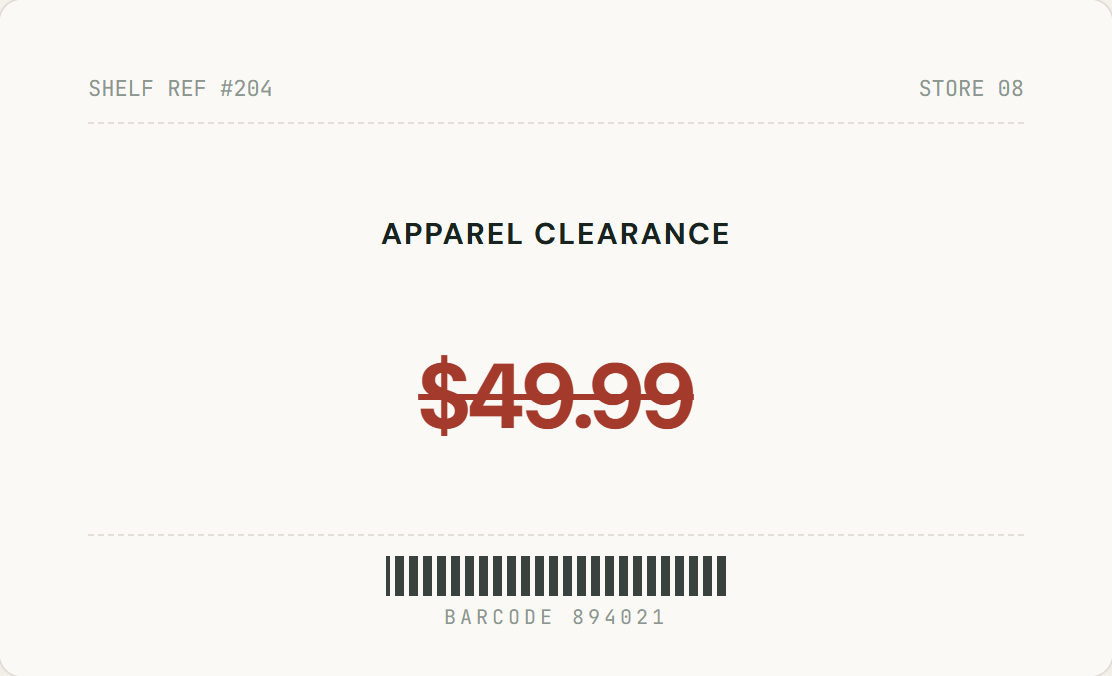
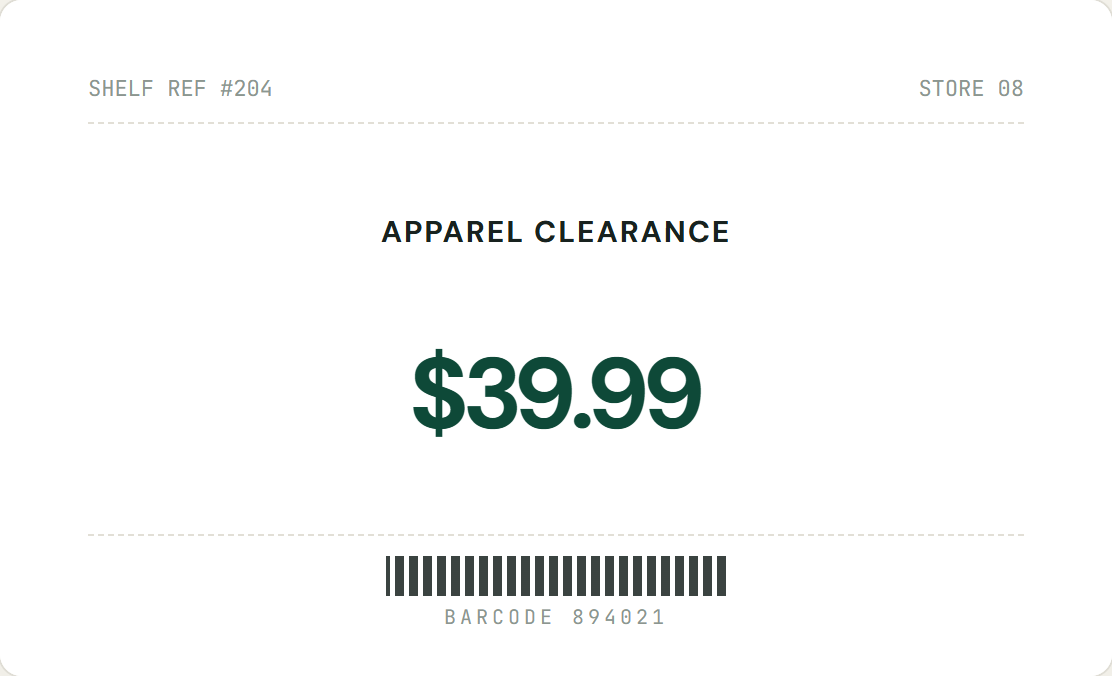
The event moved. The flyer didn’t.
Dates change after the artwork is finished. If all you have is a JPG or a screenshot, rebuilding the whole design for one line of text is overkill.
The gig moved from Friday to Saturday and the poster is already shared everywhere.
Update a date on an event flyer
Our sale got extended by a week. I only have the exported Instagram image.
Extend a sale end date
We moved the party and the invitation was made in an app I can’t reopen.
Fix the date on an invitation
Date formats you can change
Any date or time that is part of the picture. Typing the new date in the same format as the old one gives the most natural fit.
The new date is drawn in the same font style, colour and weight as the original, so it doesn’t look pasted on. See how editing text with the same font works, or use the main image text editor for prices, names and other wording.
How to change a date in an image
Five steps in your browser, with no design file and no Photoshop.
-
Upload the image
Choose a JPG, PNG or WebP up to 10MB: a flyer, poster, banner, slide, screenshot or a photo of a printed notice. Nothing is uploaded until you click Generate.
-
Box the whole date
Include the full date, not just the digit that changes, plus a little background around it. Boxing the whole date keeps the spacing and alignment consistent.
-
Type the date as it reads now
Enter exactly what the image says, for example “Sat, Oct 17”. It tells the AI which characters to replace, which helps with small or stylised numbers.
-
Type the new date in the same format
If the original says “Sat, Oct 17”, type “Sun, Oct 18” rather than “18/10”. Matching the format and length gives the cleanest result.
-
Generate, then repeat for other dates
Compare the result with the original. If the date appears more than once, box the next one and generate again; each Generate changes one area, and Undo is always available.
Before you share: a quick date checklist
After a date change, mistakes are rarely in the edit itself. They are in what else on the image still refers to the old date.
The weekday still matches
If the image says “Saturday 17 October”, moving it to the 18th means the weekday has to change too. Check it against a calendar.
Every mention is updated
Dates often appear twice: in the headline and again in the small print, a footer, a ticket line or an RSVP note.
Year and AM/PM are right
An event moved across New Year, or from afternoon to evening, needs the year or the AM/PM changed as well.
Deadlines still make sense
Lines like “early bird ends”, “last day” or “only 3 days left” may no longer be true after the main date moves.
Time zone for online events
If the image shows a time zone, make sure it still matches the new time for the people you are sharing it with.
Only the date changed
Use the compare slider to check the edit against the original and confirm the rest of the design is exactly as it was.
Dates you should not change
Do not change dates on receipts, invoices, tickets, IDs, certificates, contracts, medical notes or any document where the date is a record. Only edit images you own or are authorised to edit.
Changing dates: questions
What works, what to avoid, and how to get a clean result.
How do I change the date on a flyer or poster image?
Upload the image, drag a box around the old date, type the new date and click Generate. The new date is drawn in place, in the same style as the original.
Will the new date match the original font?
Yes. The AI redraws the date in the same font style, colour and size as the text you selected. On curved, blurry or heavily textured surfaces the match can be less close.
Can I change a date in a JPG or a screenshot?
Yes. JPG, PNG and WebP images up to 10MB work, including screenshots and photos of printed posters. You don’t need the original design file.
Can I change a time as well as a date?
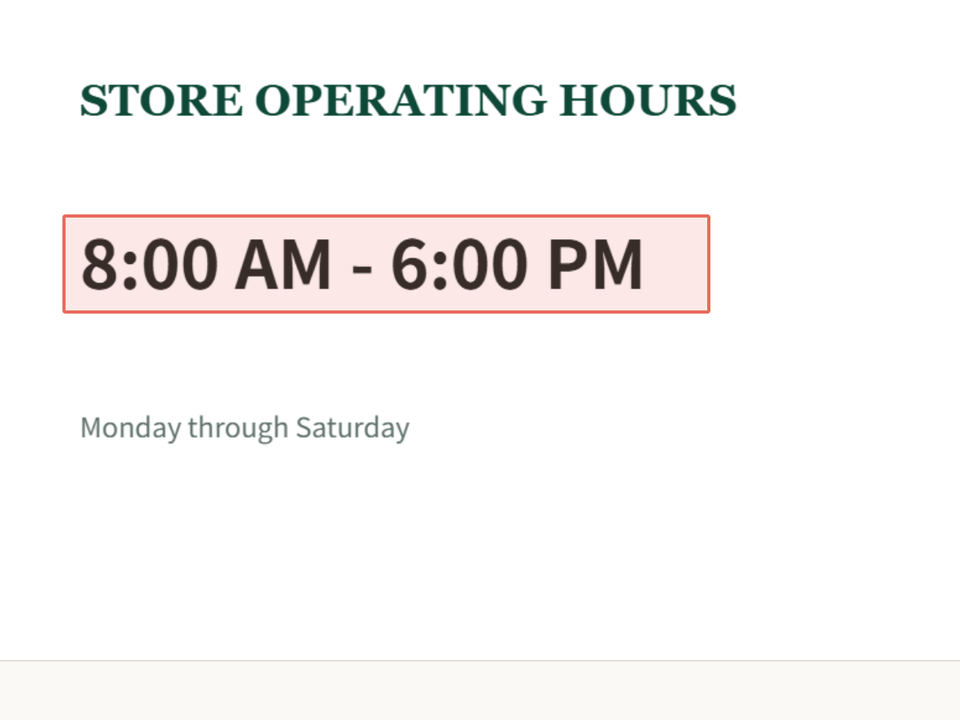
Yes. Opening hours, start times and time ranges are text like any other. Box the time and type the new one in the same format, for example “7 PM” to “8 PM”.
Can I change several dates in the same image?
Yes, one at a time. Box the first date and generate, then box the next. Each edit can be undone separately.
What if the new date is longer than the old one?
It still works, but a much longer date has to be drawn smaller to fit the same space. Keeping a similar length and format, such as “12 Oct” to “19 Oct”, gives the most natural result.
Can I change dates on receipts, tickets or documents?
No. Do not use InPlaceText to alter receipts, invoices, tickets, IDs, certificates, contracts or other records. Only edit images you own or are authorised to edit.
Is it free?
Yes. Every visitor gets 2 free text replacements per day (reset at 00:00 UTC), with no sign-up and no watermark. Failed attempts don’t count.
Ready to change the date?
Upload an image and replace the date in place. Free, watermark-free, and secure.
JPG, PNG or WebP · No account required · Secure processing