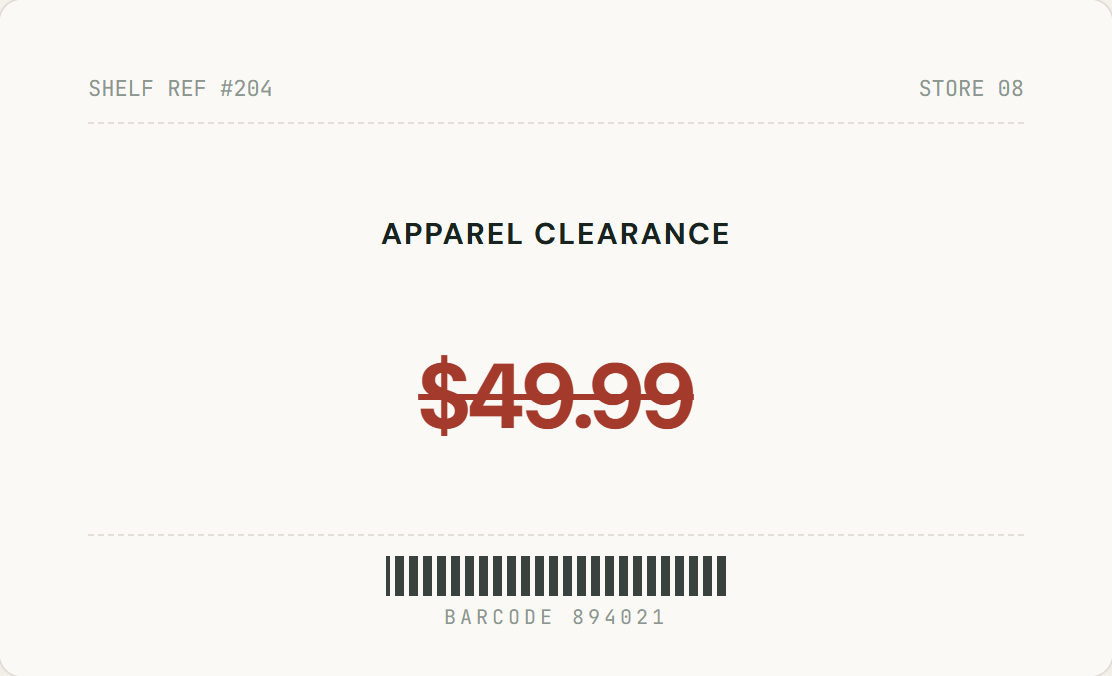
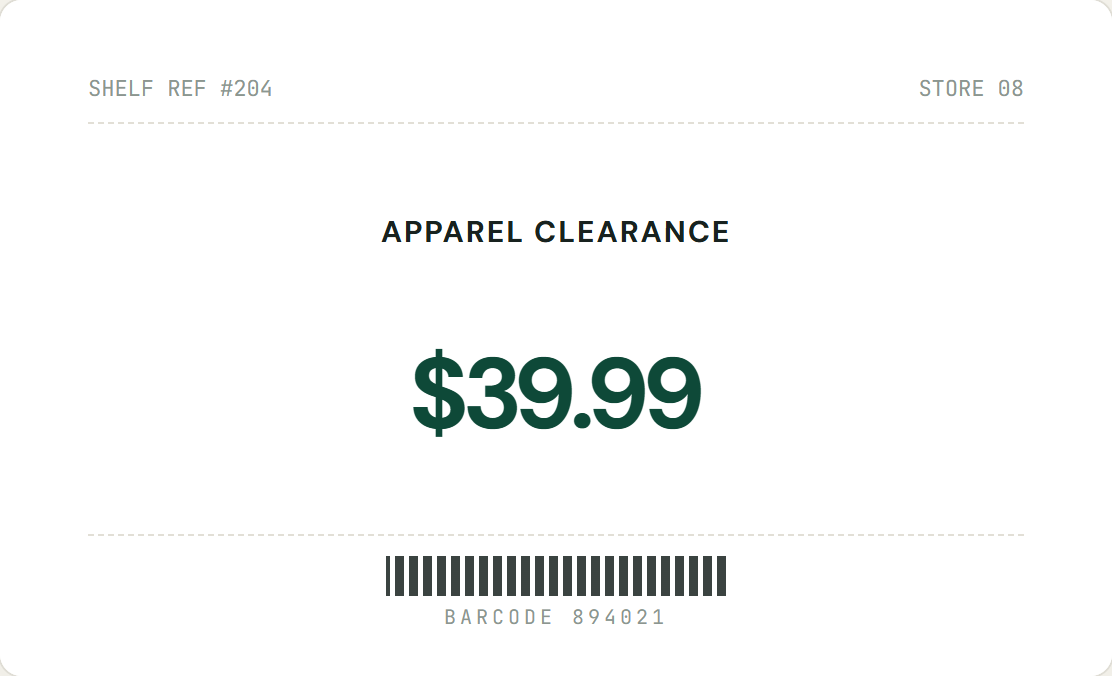
Changing the words is easy. Matching the font isn’t.
Font finders give you a list of lookalikes, and then you still have to rebuild the size, colour and shadow by hand. InPlaceText skips that step: it reads the lettering you select and writes the new words in the same style.
I only need one word changed on a photo of our sign, but I have no idea what font it is.
Change one word on a sign
The designer is gone and nobody has the source file. The headline uses some custom display font.
Edit a poster without the design file
It’s a cursive name on a photo. Font finder tools give me twenty matches and none of them look right.
Match script and handwriting
What gets matched from the original text
You never pick a font. The AI reads the lettering inside your box and carries these properties over to the new words.
It is a close style match rather than the original font file, so check the result before you use it. For prices, screenshots and other everyday fixes, the main image text editor works the same way.
How to edit text in an image with the same font
Five steps in your browser, with no font file and no design software.
-
Upload the image
Choose a JPG, PNG or WebP up to 10MB, or drag it onto the upload box. The image opens in your browser, and nothing is uploaded until you click Generate.
-
Box the words, with a little margin
Drag a box around the whole word or line you want to change, not single letters. A few pixels of background around the text gives the AI enough of the lettering to copy its style.
-
Type what the box says now
This is optional but helps a lot with script, handwriting and stylised logos, where individual letters are hard to read. It tells the AI exactly which characters to replace.
-
Type the new words in the same case
Keep upper or lower case and roughly the same length as the original. “SALE” to “DEAL” fits naturally; a full sentence in place of one word has to be drawn much smaller.
-
Generate, compare and download
Drag the compare slider to check the edit against the original. If the style isn’t close enough, undo and try again with a slightly different box. Failed attempts don’t use up your free edits.
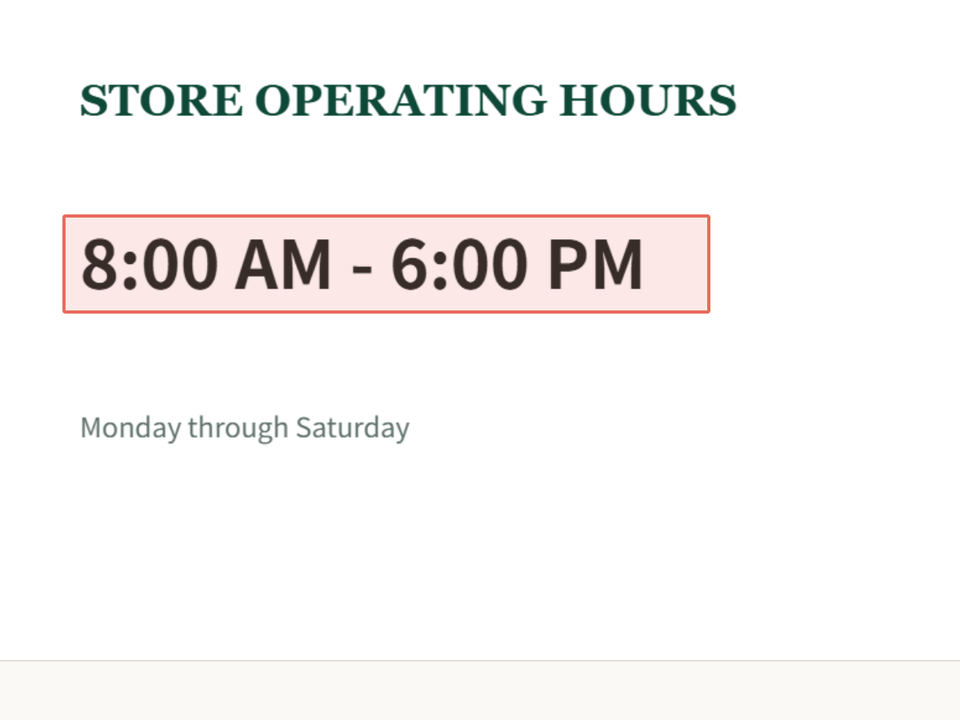
Same-font editing vs. font finders
A font finder answers “which font is this?”. That is only the first step of actually changing the text in a picture.
Same-font editing: questions
What to expect when you change text and keep the original font.
Can I change text in an image and keep the same font?
Yes. Box the words you want to change, type the new text, and click Generate. The AI redraws the new words in the same font style, colour and size as the text you selected.
Do I need to know what font the image uses?
No. You never choose a font. The style is taken from the lettering inside your box, so it also works for custom, hand-drawn or unidentified fonts.
Will it match script, handwriting or logo lettering?
Usually, yes. Script, handwriting and decorative lettering can be matched as well as plain fonts. Typing the original text helps, and very ornate or textured lettering can take a second try with a slightly different box.
Does it keep the font size and colour?
Yes. The new words are drawn at the size of the original text and in its colour, including outlines and shadows where present.
What if my new text is longer than the original?
The new words are fitted into the space of the old ones, so a much longer phrase is drawn smaller. For the most natural result, keep the replacement close in length or split a longer change across separate lines.
Does it work on photos of real signs and packaging?
Yes. Sharp, evenly lit photos of flat signs, labels and packaging work best. Strongly curved, reflective or blurry surfaces are harder and may need a tighter box or a second try.
Can I switch to a different font instead?
Not at the moment. The tool is built to match the lettering that is already in the image. To use a different font, a design editor with text layers is the better choice.
Is it free?
Yes. Every visitor gets 2 free text replacements per day (reset at 00:00 UTC), with no sign-up and no watermark. Failed attempts don’t count.
Change the words, keep the font
Upload an image and replace text in the same font style. Free, watermark-free, and secure.
JPG, PNG or WebP · No account required · Secure processing