The app changed. The screenshot didn’t.
Interfaces change faster than the screenshots in your docs, slides and store listings. Retaking every one is slow, and sometimes the old build is gone.
The button is now called “Save changes”, but twenty screenshots still say “Submit”.
Update a button label in documentation
I need the same screen with a different plan name and price for the deck.
Adjust names and numbers in a mockup
I want to share this screen, but it shows my full name and email address.
Replace personal details before sharing
What people change in screenshots
Short pieces of interface text on a clean background work best. Typing the new text at about the same length as the old gives the most natural fit.
The new text is drawn in the same font style, colour and weight as the original, so it doesn’t look pasted on. See how editing text with the same font works, how to edit text in a JPG, or use the main image text editor for prices, signs and posters.
How to edit text in a screenshot
Five steps in your browser, with no design file and no source code.
-
Open the screenshot
Choose a PNG, JPG or WebP up to 10MB, or try the “App screen” sample above. A screenshot saved as PNG is crisp, which helps the AI read small interface text.
-
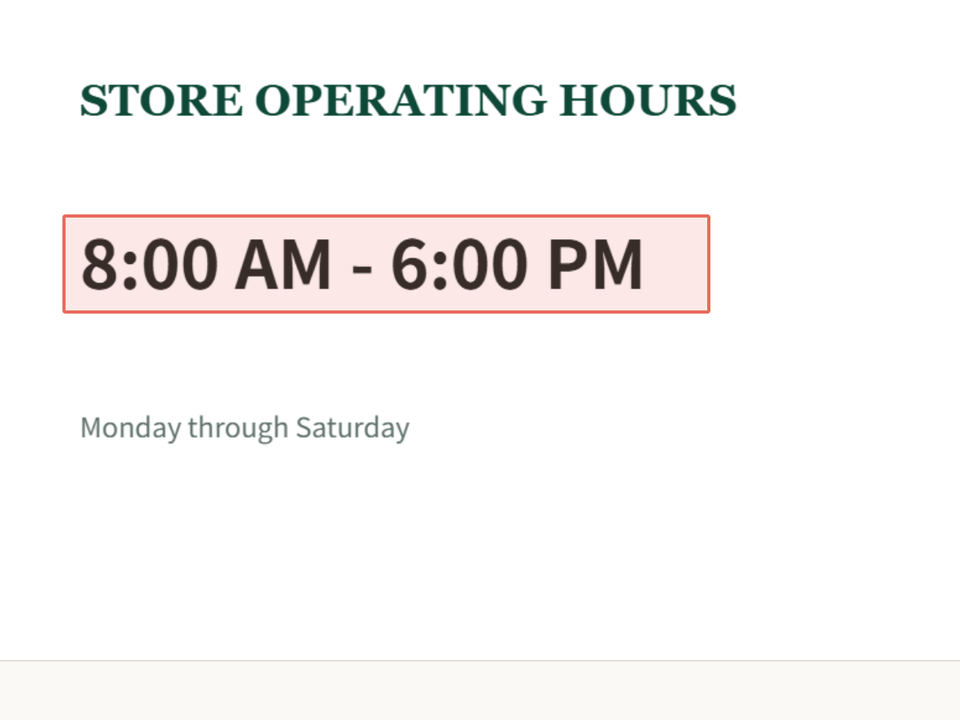
Box one piece of text
Draw the box around a single label, number or name rather than a whole row or panel. Small boxes on flat backgrounds blend most cleanly.
-
Type what it says now
Optional, but small UI fonts and light-grey hint text are easy to misread, and typing the current text removes the guesswork.
-
Type the new text
Match the length. “Save” to “Done” fits; “Save” to “Save and continue” needs more room than the button has.
-
Generate, check, repeat
Compare with the original, then box the next piece of text. Each Generate changes one area, and every edit can be undone.
Before you use an edited screenshot
The edit itself is rarely the problem. What is easy to miss is everything else on the screen that still shows the old text.
Every instance is changed
A name or version can also appear in a title bar, a browser tab, the address bar or a tooltip. Look over the whole screenshot.
Related numbers still add up
If you change one price or count, totals, percentages and nearby labels may need to change too.
The text still fits the interface
Longer words can overflow buttons and tabs in a real interface. Keep the new text about the same length as the old.
Personal details are really gone
When anonymising, check notifications, small print and the address bar, and use the compare slider to see what changed.
PNG keeps interface text crisp
A PNG download keeps thin interface text sharp. A JPG download is smaller but can soften it.
Label mockups as mockups
If the screen is an example or a mockup, say so in your docs, deck or store listing.
Screenshots you should not change
Do not edit screenshots of chats, payments, order confirmations, balances, account pages or anything that serves as proof, and do not present an edited screenshot as real. Only edit screenshots you own or are authorised to edit.
Editing screenshots: questions
What works, what to avoid, and how to get a clean result.
How do I edit text in a screenshot?
Upload the screenshot, drag a box around the label, number or name you want to change, type the new text and click Generate. The new text is drawn in place, in the same style as the interface around it.
Will the new text match the interface font?
The AI redraws the new words in the same font style, colour and size as the text you selected. It doesn’t install the exact font file, so on blurry, tiny or heavily styled text the match can be less close.
Does it work on dark mode and coloured interfaces?
Yes. It works best on solid or softly shaded backgrounds. Busy gradients, photos behind the text, or frosted-glass effects can look less clean, so box tightly and compare with the original.
Can I edit a screenshot from my phone?
Yes. Phone screenshots are usually PNG or JPG, which work directly. Open the page in your mobile browser, choose the screenshot, drag a box with your finger and type the new text.
Can I change several things in one screenshot?
Yes, one at a time. Box the first piece of text and generate, then box the next. Each edit can be undone separately.
Can I replace a name or email in a screenshot before sharing it?
You can replace it with a placeholder such as “[email protected]”. Check the whole screenshot afterwards, because the same detail can also appear in a tab title, the address bar or a notification.
Can I change text in screenshots of chats, payments or bank screens?
No. Do not edit screenshots that serve as proof, such as chats, payments, order confirmations, balances or account pages, and do not present an edited screenshot as real. Only edit screenshots you own or are authorised to edit.
Is it free?
Yes. Every visitor gets 2 free text replacements per day (reset at 00:00 UTC), with no sign-up and no watermark. Failed attempts don’t count.
Ready to edit your screenshot?
Upload a screenshot and change the text in place. Free, watermark-free, and secure.
JPG, PNG or WebP · No account required · Secure processing